In my profession, I regularly work with Veeam and have successfully completed several backup-related projects.
This backup concept is designed to be suitable for productive use, although currently implemented in a lab environment. Due to this lab context, there are specific constraints and adjustments. For example, deploying a dedicated physical backup server would be recommended for optimal security and performance in production.
Structure of the Backup System
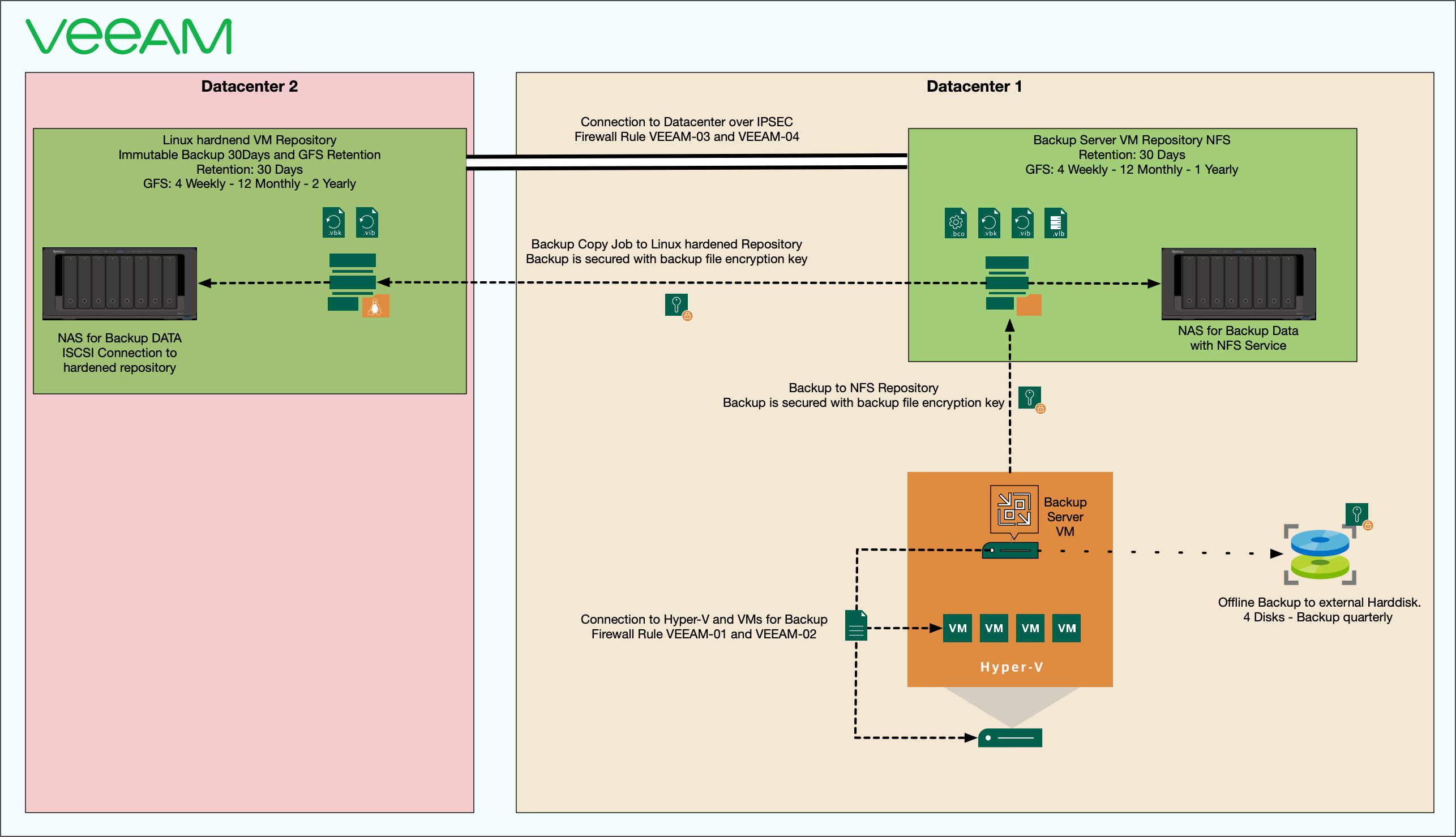
This concept utilizes a centralized backup infrastructure hosted on Hyper-V with dedicated virtual machines. It includes several repository types:
NFS Repositoryand Backup Server: A Backup Server VM (ideally a dedicated physical server in production) with a retention period of 30 days and a long-term GFS (Grandfather-Father-Son) retention policy consisting of 4 weekly, 12 monthly, and 1 yearly backup.
Hardened Linux Repository: Immutable backups with a retention period of 30 days, providing enhanced security and a long-term GFS schedule (4 weekly, 12 monthly, and 2 yearly backups).
Offline Backup: Quarterly backups to external hard disks, rotated across 4 drives, ensuring redundancy, physical separation, and protection against hardware failures and ransomware attacks.
Secure Communication and Data Protection
Communication between systems adheres to stringent security measures:
Backup data is encrypted at rest using Veeam’s built-in encryption for both primary repositories and backup copy jobs.
NAS storage is connected to the Linux repository via iSCSI.
Secure connections between different sites are established via IPSEC.
Immutable backups are implemented, adding another security layer against unauthorised modifications or deletions.
Use of offline Backups and different locations.
Firewall Rules and Security
The backup infrastructure, including repositories and servers, is intentionally configured without direct internet access to enhance security. Two dedicated firewall rules, disabled by default, are temporarily enabled only when required for updating Veeam and Synology software. All other software updates are managed via the Endpoint Central patching server, which is the only authorized system permitted to connect directly to the Veeam server. All other connections originate solely from the Veeam server itself. A deny rule is implemented at the end of the firewall ruleset to block any other unauthorized traffic.
Backup Testing and Compliance
This backup concept strictly complies with Veeam’s recommended best practices and fully meets the 3-2-1 backup rule.
Three Copies of Data: Maintain three separate data copies.
Two Different Media Types: Utilize various storage media such as NFS-connected NAS in Datacenter 1, iSCSI-connected NAS and Linux hardened repository in Datacenter 2, and additional external hard disks.
One Off-Site Copy: Securely stored backups in multiple physical locations.
Offline or Immutable Copy: Immutable backups stored on the Linux hardened repository and quarterly offline backups on external hard disks to prevent ransomware threats.
Implementing and thoroughly testing this backup concept in a lab environment provides a robust foundation, ready for scaling and adapting seamlessly to a full-scale production environment.
Configuration Examples
Example Palo Alto Firewall Rules
Veeam
Veeam Security and Compliance Analyzer (Suppressed due to Community Free Edition limitations)
Suppressed
MFA and password-loss protection not available in Community Free Edition; I recommend using a password manager like Bitwarden, with passwords physically stored on an encrypted USB stick.
Hardened repositories currently implemented as a VM in the lab; a physical server is recommended for production.
Backup services run under a dedicated service account rather than the LocalSystem account for enhanced security.
In my lab, Backup encryption passwords are alphanumeric and not include special characters. I use a length of at least 30 characters for optimal security.
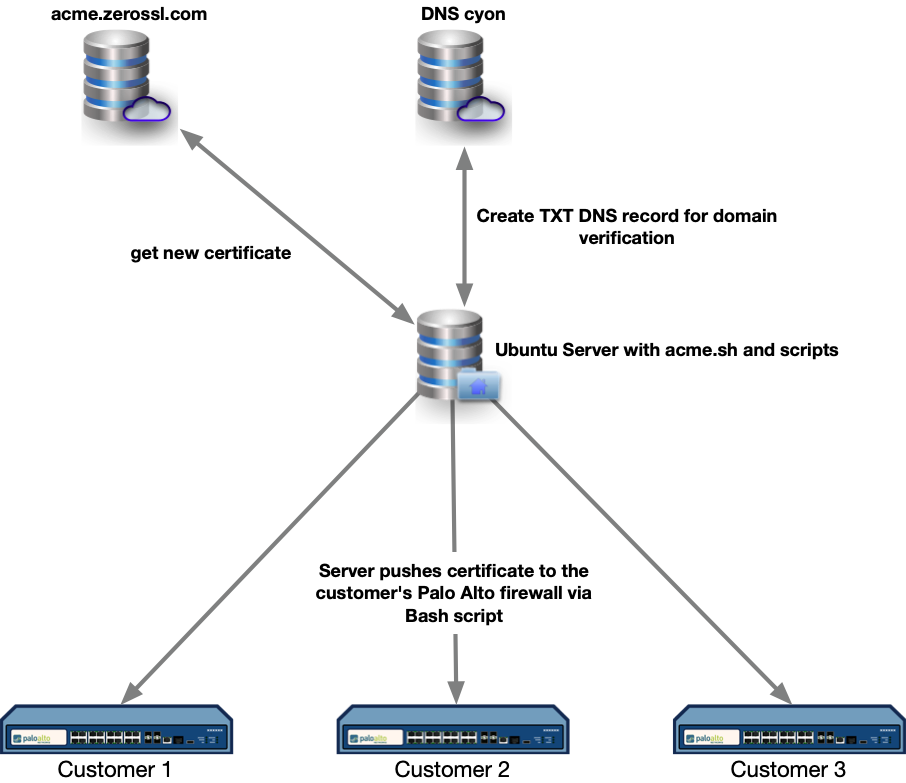
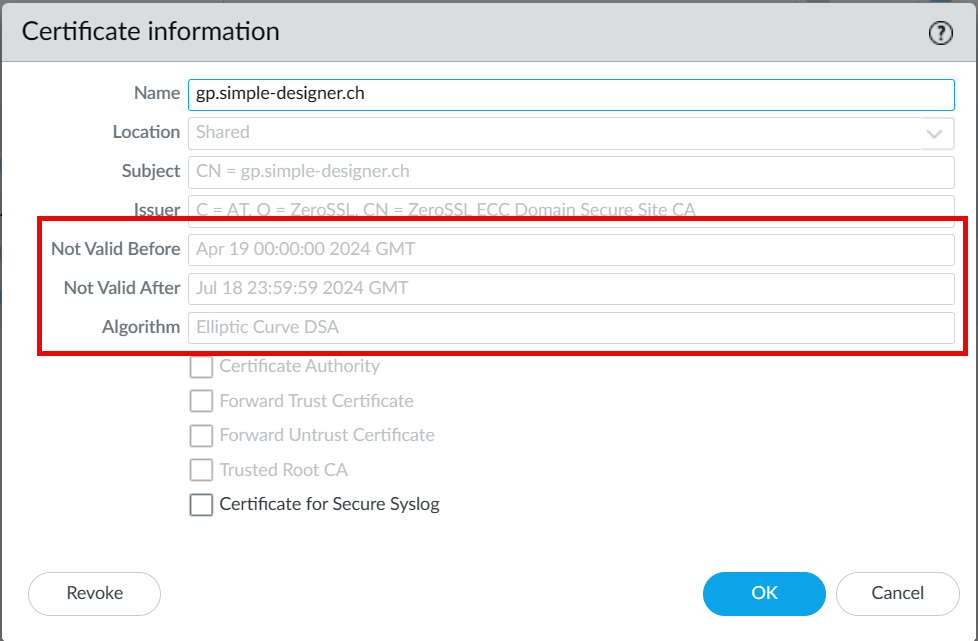
I use for web hosting Cyon, which simplifies the certificate renewal process for the GlobalProtect portal since I only need to maintain scripts for one provider.
I use acme.sh together with a Bash script, which is setup as a cronjob on a Ubuntu Linux server to run every two months.
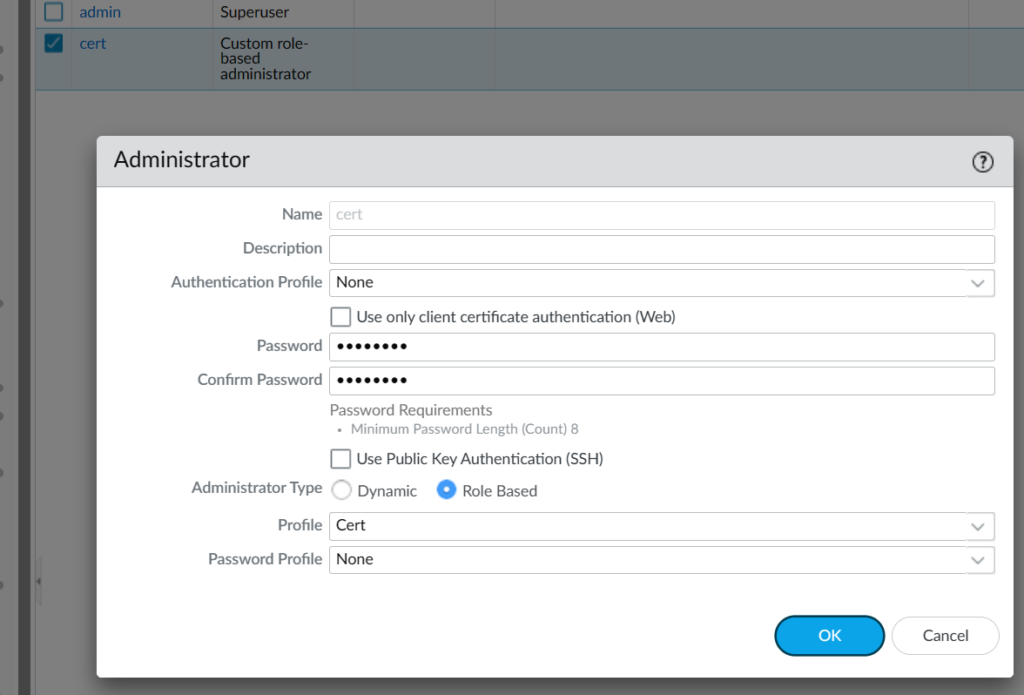
On the Palo Alto firewall, I have created a user with special permissions to handle the certificate updates. This user is specified within the script.
Architecture
Configuration Details:
Install acme.sh:
wget -O - https://get.acme.sh | sh -s email=my@example.com
set mgt-config users cert permissions role-based custom profile Cert
show shared admin-role Cert
set shared admin-role Cert role device webui
set shared admin-role Cert role device xmlapi commit enable
set shared admin-role Cert role device xmlapi import enable
set shared admin-role Cert role device restapi
GUI
Bash Script Setup:
Create a script file for each firewall under acme.sh:
administrator@myserver:~/.acme.sh$ sudo vim cert_renew-simple-designer.sh
[Fri Apr 19 11:52:38 AM UTC 2024] Using CA: https://acme.zerossl.com/v2/DV90 [Fri Apr 19 11:52:38 AM UTC 2024] Create account key ok. [Fri Apr 19 11:52:38 AM UTC 2024] No EAB credentials found for ZeroSSL, let’s get one [Fri Apr 19 11:52:41 AM UTC 2024] Registering account: https://acme.zerossl.com/v2/DV90 [Fri Apr 19 11:52:42 AM UTC 2024] Registered [Fri Apr 19 11:52:42 AM UTC 2024] ACCOUNT_THUMBPRINT=’xxxxxxxx’ [Fri Apr 19 11:52:42 AM UTC 2024] Creating domain key [Fri Apr 19 11:52:42 AM UTC 2024] The domain key is here: /home/administrator/.acme.sh/gp.simple-designer.ch_ecc/gp.simple-designer.ch.key [Fri Apr 19 11:52:42 AM UTC 2024] Single domain=’gp.simple-designer.ch’ [Fri Apr 19 11:52:43 AM UTC 2024] Getting webroot for domain=’gp.simple-designer.ch’ [Fri Apr 19 11:52:43 AM UTC 2024] Adding txt value: xxxxxxxxx for domain: _acme-challenge.gp.simple-designer.ch [Fri Apr 19 11:52:44 AM UTC 2024] [Fri Apr 19 11:52:44 AM UTC 2024] +———————————————+ [Fri Apr 19 11:52:44 AM UTC 2024] | Adding DNS TXT entry to your cyon.ch domain | [Fri Apr 19 11:52:44 AM UTC 2024] +———————————————+ [Fri Apr 19 11:52:44 AM UTC 2024] [Fri Apr 19 11:52:44 AM UTC 2024] * Full Domain: _acme-challenge.gp.simple-designer.ch [Fri Apr 19 11:52:44 AM UTC 2024] * TXT Value: PlKk0MWNlB-Egz8RKHaYTuoF0VX17uqx3sCvkN0K0MY [Fri Apr 19 11:52:44 AM UTC 2024] [Fri Apr 19 11:52:44 AM UTC 2024] – Logging in… [Fri Apr 19 11:52:44 AM UTC 2024] success [Fri Apr 19 11:52:45 AM UTC 2024] [Fri Apr 19 11:52:45 AM UTC 2024] – Changing domain environment… [Fri Apr 19 11:52:46 AM UTC 2024] success [Fri Apr 19 11:52:46 AM UTC 2024] [Fri Apr 19 11:52:46 AM UTC 2024] – Adding DNS TXT entry… [Fri Apr 19 11:52:49 AM UTC 2024] success (TXT|_acme-challenge.gp.simple-designer.ch.|xxxxxxxxxxxxxx) [Fri Apr 19 11:52:49 AM UTC 2024] [Fri Apr 19 11:52:49 AM UTC 2024] – Logging out… [Fri Apr 19 11:52:49 AM UTC 2024] success [Fri Apr 19 11:52:49 AM UTC 2024] [Fri Apr 19 11:52:49 AM UTC 2024] The txt record is added: Success. [Fri Apr 19 11:52:49 AM UTC 2024] Sleep 300 seconds for the txt records to take effect [Fri Apr 19 11:57:51 AM UTC 2024] Verifying: gp.simple-designer.ch [Fri Apr 19 11:57:52 AM UTC 2024] Processing, The CA is processing your order, please just wait. (1/30) [Fri Apr 19 11:57:55 AM UTC 2024] Success [Fri Apr 19 11:57:55 AM UTC 2024] Removing DNS records. [Fri Apr 19 11:57:55 AM UTC 2024] Removing txt: xxxxxxxxxxxxx for domain: _acme-challenge.gp.simple-designer.ch [Fri Apr 19 11:57:55 AM UTC 2024] [Fri Apr 19 11:57:55 AM UTC 2024] +————————————————-+ [Fri Apr 19 11:57:55 AM UTC 2024] | Deleting DNS TXT entry from your cyon.ch domain | [Fri Apr 19 11:57:55 AM UTC 2024] +————————————————-+ [Fri Apr 19 11:57:55 AM UTC 2024] [Fri Apr 19 11:57:55 AM UTC 2024] * Full Domain: _acme-challenge.gp.simple-designer.ch [Fri Apr 19 11:57:55 AM UTC 2024] [Fri Apr 19 11:57:55 AM UTC 2024] – Logging in… [Fri Apr 19 11:57:56 AM UTC 2024] success [Fri Apr 19 11:57:57 AM UTC 2024] [Fri Apr 19 11:57:57 AM UTC 2024] – Changing domain environment… [Fri Apr 19 11:57:58 AM UTC 2024] success [Fri Apr 19 11:57:58 AM UTC 2024] [Fri Apr 19 11:57:58 AM UTC 2024] – Deleting DNS TXT entry… [Fri Apr 19 11:58:11 AM UTC 2024] success (TXT|_acme-challenge.gp.simple-designer.ch.|xxxxxxxxxxxxxxx) [Fri Apr 19 11:58:11 AM UTC 2024] done [Fri Apr 19 11:58:11 AM UTC 2024] [Fri Apr 19 11:58:11 AM UTC 2024] – Logging out… [Fri Apr 19 11:58:11 AM UTC 2024] success [Fri Apr 19 11:58:11 AM UTC 2024] [Fri Apr 19 11:58:11 AM UTC 2024] Removed: Success [Fri Apr 19 11:58:11 AM UTC 2024] Verify finished, start to sign. [Fri Apr 19 11:58:11 AM UTC 2024] Lets finalize the order. [Fri Apr 19 11:58:11 AM UTC 2024] Le_OrderFinalize=’https://acme.zerossl.com/v2/DV90/order/xxxxxxxxxxxxx/finalize’ [Fri Apr 19 11:58:12 AM UTC 2024] Order status is processing, lets sleep and retry. [Fri Apr 19 11:58:12 AM UTC 2024] Retry after: 15 [Fri Apr 19 11:58:28 AM UTC 2024] Polling order status: https://acme.zerossl.com/v2/DV90/order/xxxxxxxxxxxxxxxxx [Fri Apr 19 11:58:28 AM UTC 2024] Downloading cert. [Fri Apr 19 11:58:28 AM UTC 2024] Le_LinkCert=’https://acme.zerossl.com/v2/DV90/cert/xxxxxxxxxxxxxxxxxx’ [Fri Apr 19 11:58:29 AM UTC 2024] Cert success. —–BEGIN CERTIFICATE—– xxxxxxxxxxxxxxxxxxxxxxxxxxxxxxxxxxxxxxxxxxxxxx —–END CERTIFICATE—– [Fri Apr 19 11:58:29 AM UTC 2024] Your cert is in: /home/administrator/.acme.sh/gp.simple-designer.ch_ecc/gp.simple-designer.ch.cer [Fri Apr 19 11:58:29 AM UTC 2024] Your cert key is in: /home/administrator/.acme.sh/gp.simple-designer.ch_ecc/gp.simple-designer.ch.key [Fri Apr 19 11:58:29 AM UTC 2024] The intermediate CA cert is in: /home/administrator/.acme.sh/gp.simple-designer.ch_ecc/ca.cer [Fri Apr 19 11:58:29 AM UTC 2024] And the full chain certs is there: /home/administrator/.acme.sh/gp.simple-designer.ch_ecc/fullchain.cer [Fri Apr 19 11:58:29 AM UTC 2024] The domain ‘gp.simple-designer.ch’ seems to have a ECC cert already, lets use ecc cert. [Fri Apr 19 12:30:19 PM UTC 2024] Success
0 3 — The minute (0) and the hour (3), meaning the job will run at 3:00 AM.
1 — The day of the month, the 1st.
1,3,5,7,9,11 — The months (January, March, May, July, September, November), effectively every two months starting from January.
The last * stands for “every day of the week”, which isn’t relevant here since the day of the month is specified.
/home/yourusername/.acme.sh/cert_renew-simple-designer.sh Ensure the path points to where your script is actually located. Replace yourusername with your actual username.
Explanation of Scripts and Functions:
The Bash script automates the renewal and deployment of SSL/TLS certificates for the GlobalProtect portal using acme.sh.
The --issue command in the script is used to obtain or renew a certificate by utilizing the DNS challenge method, which in this case is configured for Cyon DNS.
The --deploy command applies the renewed certificate to the specified firewall via the Palo Alto Networks Operating System (PAN-OS) deployment hook, ensuring that the firewall uses the updated certificate.
The --dns command is used to specify the DNS service provider for the DNS challenge. acme.sh supports numerous DNS providers, making it flexible for various configurations.
The --dnssleep 300 command delays the verification of the DNS TXT record for 300 seconds. This delay is useful to ensure that DNS changes have propagated fully before verification proceeds.
The --insecure command is used when interfacing with the Palo Alto management GUI that has a self-signed certificate. This bypasses SSL certificate validation, useful in controlled environments where the authenticity of the connection is known.
Environment variables (PANOS_USER, PANOS_PASS, PANOS_HOST_SIMPLE_DESIGNER) are set to ensure that the script uses the correct credentials and targets the appropriate firewall.
Automating firewall URL whitelisting can save hours of manual work. In this post, we demonstrate how to combine a simple Python wrapper with an Ansible playbook to:
Search the PAN‑OS logs for blocked URLs.
Select the URLs to whitelist.
Add them to an existing Custom URL Category.
Commit and log the change under a designated Change/Ticket ID.
Ansible playbook runs automatically and produces a log file named whitelist_log_<ChangeID>.log.
Example
Blocked category stock-advice-and-tolls
Test website in this category
Run script
Check logs and firewall config
Conclusion
This automation reduces manual CLI work and standardises whitelisting changes with proper logging. Fork the Git repo, tweak to your environment, and enjoy a faster firewall workflow!
If you’re managing a VM in Hyper-V with multiple network adapters—such as in a firewall setup—it’s crucial to correctly configure VLANs. Often, you might need to set up a trunk on a specific interface, which can only be identified uniquely by its MAC address, especially when interface names are the same.
Identify the Adapter: First, determine the MAC address and switch name of the network adapters associated with your VM. Replace FORTIGATE-NEW with your VM’s name to find the correct adapter:
In this example, we will configure the “Internal” network adapter for a trunk.
Filter the Adapter Based on the MAC Address: This command filters out the specific adapter you want to configure by matching its MAC address. Ensure you replace "00155D450205" with the MAC address of the adapter you intend to use.
Configure Trunk and VLANs: After filtering the right adapter, this command sets up a trunk and specifies which VLAN IDs are allowed on this trunk. It also defines VLAN 70 as the native VLAN, meaning untagged traffic will be associated with VLAN 70.
This approach effectively isolates traffic and manages network segmentation on a Hyper-V VM, especially in complex environments with multiple network adapters. Always ensure to replace placeholders with actual values relevant to your setup.